Sage 200cloud Standard overview
Summary view of the Sage 200cloud Standard connection flow and available support
You can share your financial data from this integration using the Intelligent upload method. To do so, click the data sharing link you received via email to open the connection flow.
Next, select your accounting software from the list. Then, follow the on-screen instructions to run, download, and share reports. We summarized these steps below.
This integration also supports Intelligent file upload. Visit Sage 200cloud Standard intelligent upload for detailed instructions.
Your financial institution has requested to view, create or modify your business's financial data via your Sage 200cloud Standard account. This is needed to deliver financial services to you. You will follow a secure connection flow to establish a digital link to your Sage 200cloud Standard account.
Check your software plan or version
If you need to check the plan or version of the accounting software you are using, follow these steps in Sage 200cloud Standard:
- Log in to Sage 200cloud Standard.
- Click on the Cog (
⚙) button at the top right to access the Settings dropdown menu. - Select About Sage 200. The version will be displayed in the pop-up.
Connect to Sage 200cloud
To establish a digital connection with Sage 200cloud and enable your financial institution to access your financial data, follow the Link URL provided to you and complete these steps:
-
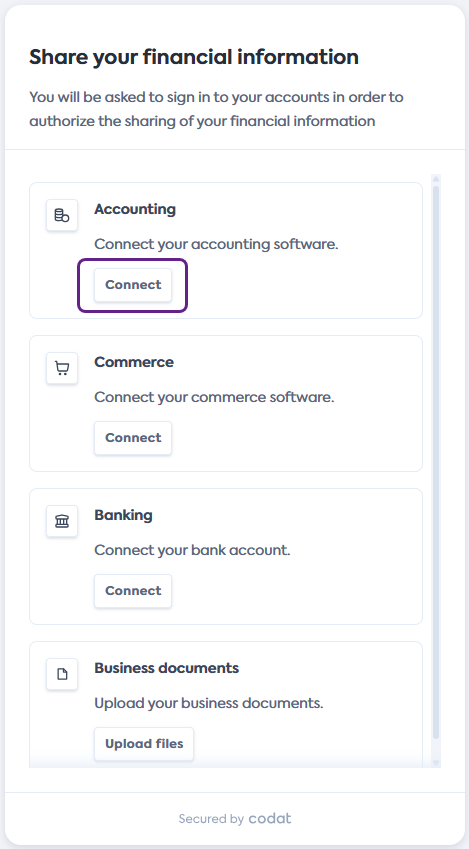
On the Share your financial information screen of the connection flow, click Connect in the Accounting tile to initiate a connection to Sage 200cloud.
You might not see this screen if your financial institution disabled this selection. In this case, proceed to the next step.
-
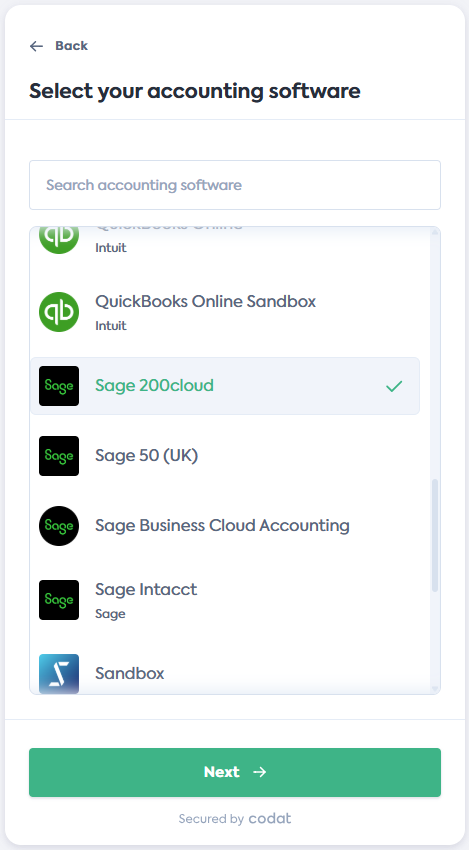
On the Select your accounting software screen, scroll or search for Sage 200cloud. Click the tile to select, then click Next.
-
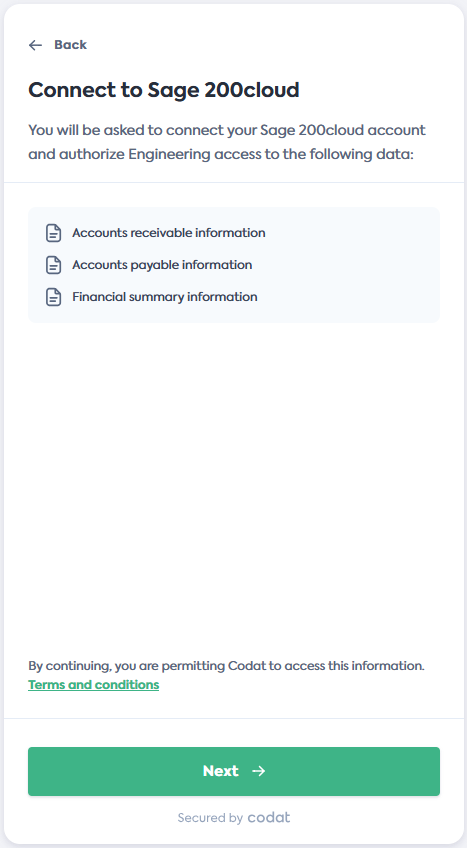
On the Connect to Sage 200cloud screen, review the data you will provide access to, then click Next.
Sage 200cloud will open in a new tab and the connection flow will move to the Waiting for connection... screen.
-
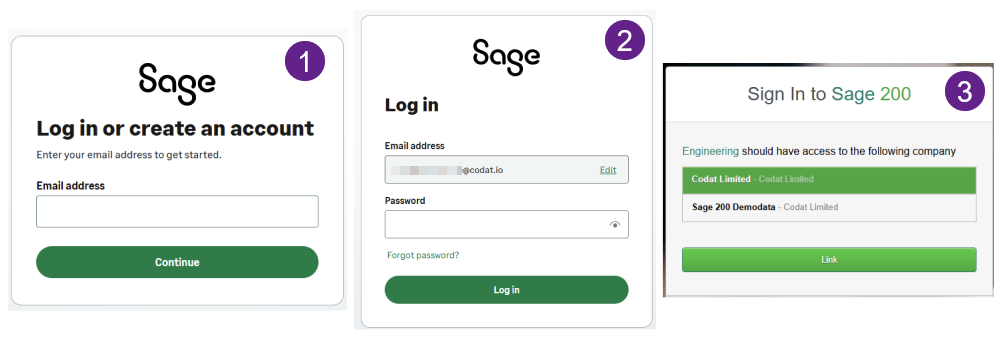
In Sage 200cloud, log in with your regular user credentials and follow the flow to complete the connection. Select the company you want to connect.
Your login credentials remain secure during this process and are not shared with Codat or your financial institution.
-
Once the connection is confirmed, the Sage 200cloud window will close, and you will be redirected to the final step of the flow.
Click Continue on the Sage 200cloud connected screen, then click Complete and exit the flow.